Using netsh 🙂
netsh trace start persistent=yes capture=yes tracefile=c:tempnettrace-boot.etl

netsh trace stop
Using netsh 🙂
netsh trace start persistent=yes capture=yes tracefile=c:tempnettrace-boot.etl netsh trace stop
In most situation, if you get this error, it means that there are some configuration errors in your Citrix environment. You can refer to below Citrix article for more information.
https://support.citrix.com/article/CTX124143
But, this week when we tried to renewal our netscaler certificate, we got a problem that:
1. Windows Machines works well with the new certificate. End users can start their VDIs with out any problem;
2. Windows Thin client which is running Windows Embedded XP can’t start VDI. They always got the error code’1030′
3. Some Linux thin client users can start their VDI, while some of them can’t. For who can’t start their VDI they got an error message said that S’SSL error’
Finally, after two days investigation, we fixed this issue.
1. Use Symantec SSL toolbox to scan the certificate installed on our server. We found below error message
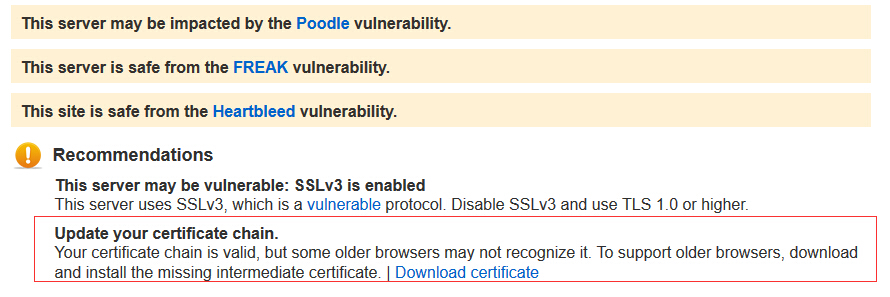
It means that for some old client, they may get problem without the chain. So download the chain and put it into the certificate on Netscaler.
2. After we fixed the chain issue, our thin client still can’t connect. And we found that for the thin client which is running Citrix Receiver 13.1, it can connect. And then we checked Citrix Receiver version changelog and we found
New features in this release

    Native Smartcard authentication to StoreFront
    Session Reliability for robust HDX connection
    SHA-2 encryption for enhanced security
    Improved 64-bit packaging to enable access from 64-bit Linux distributions


https://www.citrix.com/downloads/citrix-receiver/linux/receiver-for-linux-131.html
Well, that’s the key point. For thin client have, they are still using citrix online plugin 11.2 or Citrix Receiver 13.0 for Linux.
So we changed our certificate to SHA1, and all works.
The next step is to upgrade Citrix Receiver to the latest version on all Thin Client and then deprecation SHA-1 certificate and moving to SHA-2.
Usually, when deploy PVS servers, we only use 1 DHCP scope. But for some large environment, we have to use multiple DHCP servers with a split scope if we can’t use Windows Server 2012.
Then it’s more likely to get the dual IP issue:
1. When VDI start, first, it contacted DHCP server to get the 1st IP address, then use this IP address to connect to PVS server to start to download the image and startthe VDI.
2. And when windows is up, windows DHCP client will request an IP address from DHCP server. In multiple DHCP environment, it may request IP address from a different DHCP server and got a different IP address..
Then we got below problem:
1. VDIs may have two IP address.
2. We run out IP address. You will find that lot’s IP address are marked as ‘bad addresses’
3. DNS record issue. Because some VDIs have two IP addresses, VDIs registered the wrong IP address to DNS server.
We spent lots of times with Citrix, and Citrix can’t provide a solution for this issue. They only suggest to use PVS server in single DHCP scope environment.
But finally, we found a solution to fix this issue by ourselves.
This issue was caused by that when windows is up, Citrix PVS Device Service will inject the IP address it got during PXEboot process into system. And if Citrix PVS Device Service starts before DHCP client service, then VDI will get 1 IP address. But if DHCP client start first, Citrix will still inject the IP address, and then VDI will get two IP addresses.
There are two ways to fix this issue.
1. Disable DHCP client in VDI. This option is not good, but it works. But please be aware that after you disable DHCP client service, the VDI may not be able to get DNS server from DHCP servers. Because Citrix only inject IP address/Netmask/Gateway information to windows.
2. Make “Citrix PVS Device Service” as a dependency service of DHCP client servers to make sure that DHCP service starts after Citrix inject the IP address.
Edit the reg key:
HKLMSystemCurrentControlSetServicesdhcpDependsOnService
Add "BNDevice" to the end of the list of dependent services.
Dual to Citrix can’t fix this issue, this is the only solution we found to fix this issue.
But if you are able to use windows server 2012, then go for windows server 2012 DHCP cluster maybe another choice.
Rename below folder to Machinekeys_old
C:ProgramDataMicrosoftCryptoRSAMachineKeys
And then restart the server
If groupolicy disabled you to do so, then we still can turn off certificate revocation check in registry
In registry editor browse to the following key:
HKEY_CURRENT_USERSoftwareMicrosoftWindowsCurrentVersionWinTrustTrust ProvidersSoftware Publishing
Change Value “State” to 146944 Decimal or 0x00023e00 Hexadecimal
To List All the Windows Updates Installed on the computer
wmic qfe list
to generate a textfile:
wmic qfe list brief /format:texttablewsys > hotfix.txt
to generate a HTM file:
wmic qfe list brief /format:htable > hotfix.html