esxcli network firewall get Returns the enabled or disabled status of the firewall and lists default actions.
esxcli network firewall set –default-action Update default actions.
esxcli network firewall set –enabled Set to true to enable the firewall, set to false to disable the firewall.
esxcli network firewall load Load the firewall module and rule set configuration files.
esxcli network firewall refresh Refresh the firewall configuration by reading the rule set files if the firewall module is loaded.
esxcli network firewall unload Destroy filters and unload the firewall module.
esxcli network firewall ruleset list List rule sets information.
esxcli network firewall ruleset set –allowedall Set the allowedall flag.
esxcli network firewall ruleset set –enabled Enable or disable the specified rule set.
esxcli network firewall ruleset allowedip list List the allowed IP addresses of the specified rule set.
esxcli network firewall ruleset allowedip add Allow access to the rule set from the specified IP address or range of IP addresses.
esxcli network firewall ruleset allowedip remove Remove access to the rule set from the specified IP address or range of IP addresses
Category Archives: VMware
Update ESXi 6.5 to ESXi 6.5.0d
Put the host into maintenance mode, ssh to the host, and then run below command:
esxcli network firewall ruleset set -e true -r httpClient esxcli software profile install -p ESXi-6.5.0-20170404001-standard -d https://hostupdate.vmware.com/software/VUM/PRODUCTION/main/vmw-depot-index.xml
Then reboot the host after installation finished:)
Vmware NSX for vSphere 6.2.2 bugs — lost network connection
We are using VMware NSX in our production environment for a long time.
And recently we got some problem with NSX, the symptoms is
Some VMs will lose network connection after migrated to another VM;
New firewall rules are not able to apply on some of the VMs.
After engaged VMware, VMware confirmed that it’s a bug in NSX.
VMware assigned about 1.6G heap memory for NSX firewall on each of the ESX hosts. If you applied too much rules or you have too many VMs and you’ll reach the memory limit. Then you’ll get this issue…
Current fix is to upgrade to 6.2.3…
Fix VCSA 6.0 disk issue — “unknow command shell.set”
In my home lab I’m using Lenovo M900 tiny to run ESX 6.0 and using Synology DS1813+ to provide the ISCSI LUN.
And I’m using VCSA as my vCenter server and put it on the iSCSI lun.
Today I updated my DS1813+ to DSM 6.0 update 1, during the update, I reboot my synology nas. And it seems ESX lost connecting to the iSCSI LUN and my VCSA was dead.
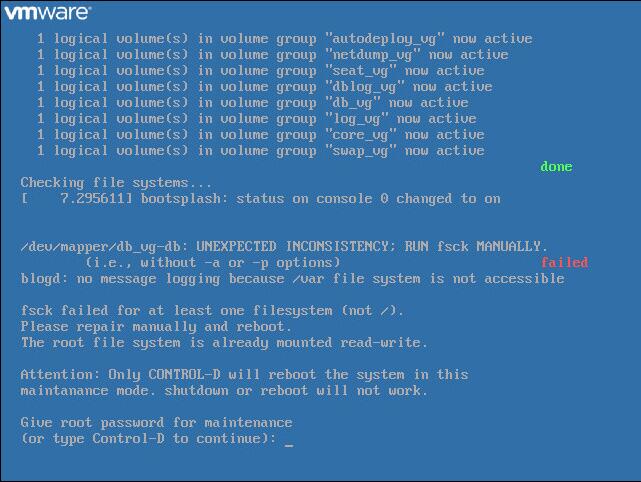
Tried to restart VCSA, it always failed and asked my to run fsck.

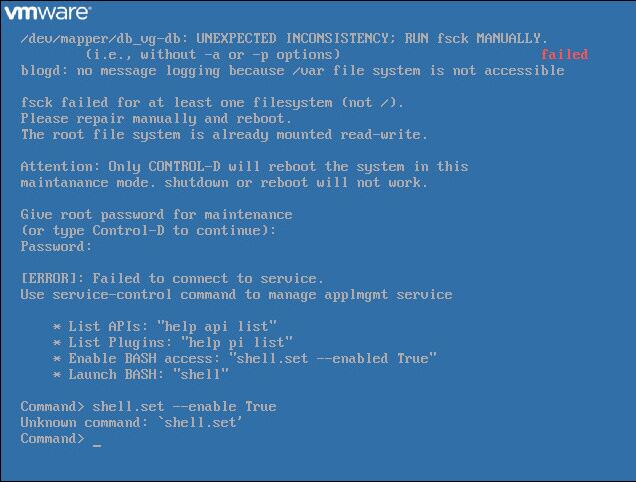
At first, I want to run fsck in VCSA shell. But the wired thing is that when I run command “shell.set –enable True”, it told me this command doesn’t exist..

It seems that the volumes are in read-only and the shell is dead.
Don’t worry, let’s fix it.
Please follow below steps:
- stop VCSA machine
- add the iso of RHEL7 installation CD to the (actually as CD/DVD of the machine and modified boot order to start from the CD
- boot from CD
- enter shell of LiveCD
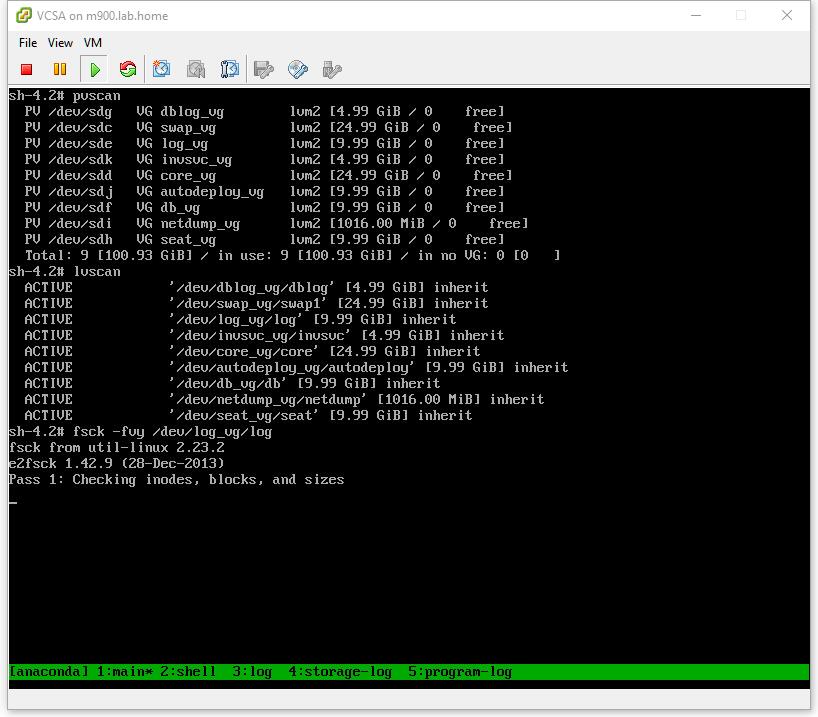
- issue the following commands (to see that logical volumes are OK)
pvscan lvscan fsck -fvy /dev/log_vg/log
- repeat step 5 to check all the volumes
After finished, remove the ISO and reboot the VM.
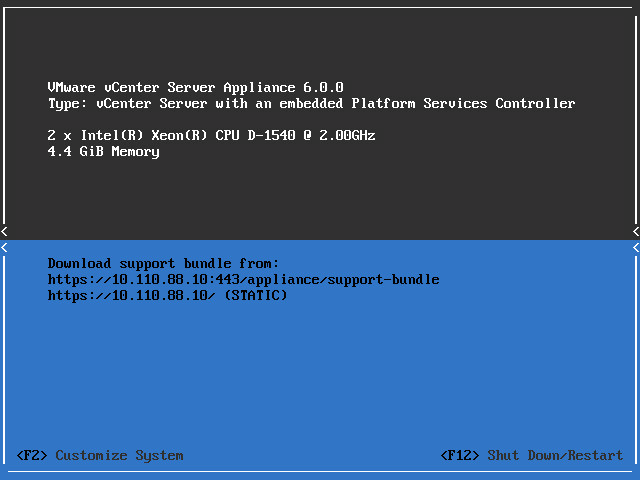
You will find VCSA is back:)
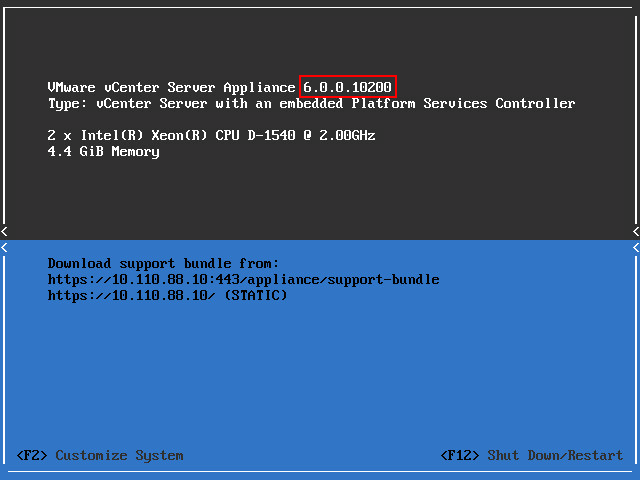
Upgrade vCenter Server Appliance (VCSA) and ESXi
Upgrade vCenter
Best practices is always to upgrade vCenter before your ESXi hosts. Download the ISO and upload to your Datastore.
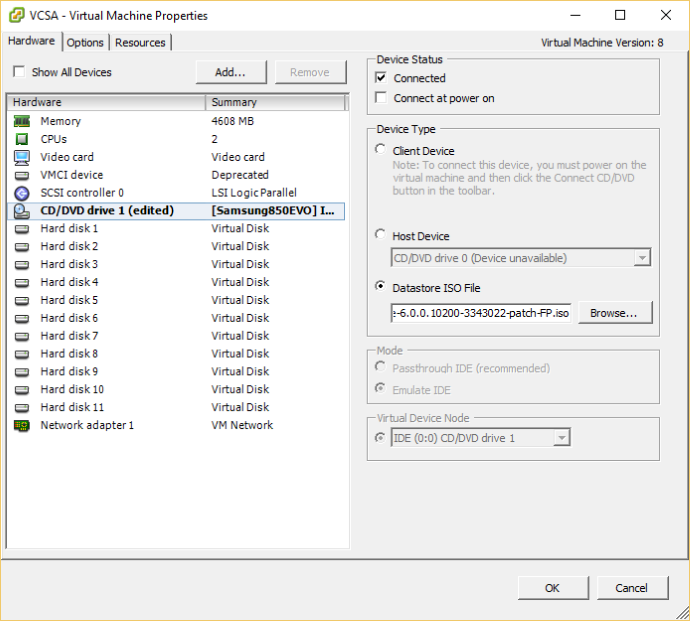
Attach the ISO to the vCenter VM.
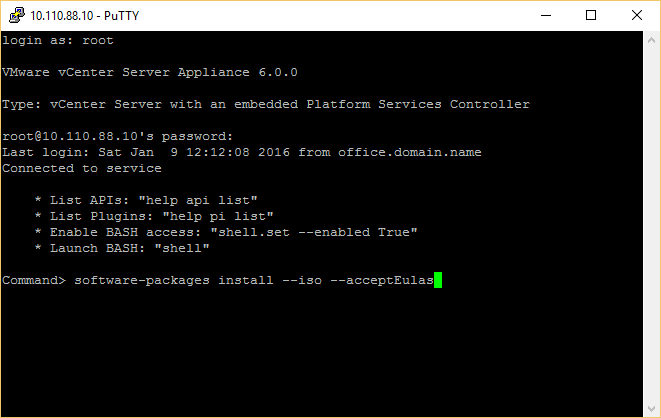
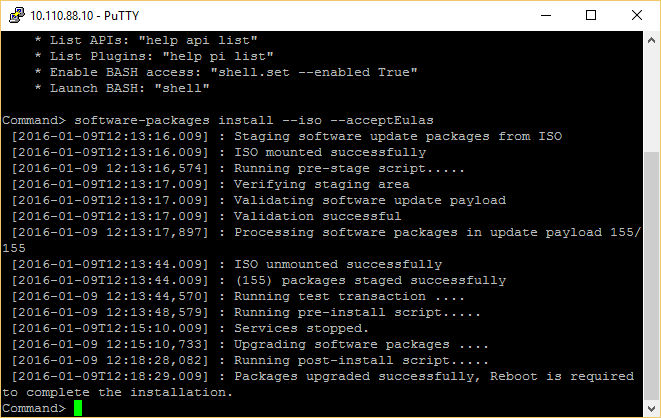
Use Putty to connect to your VCSA and run the following command:
software-packages install --iso --acceptEulas
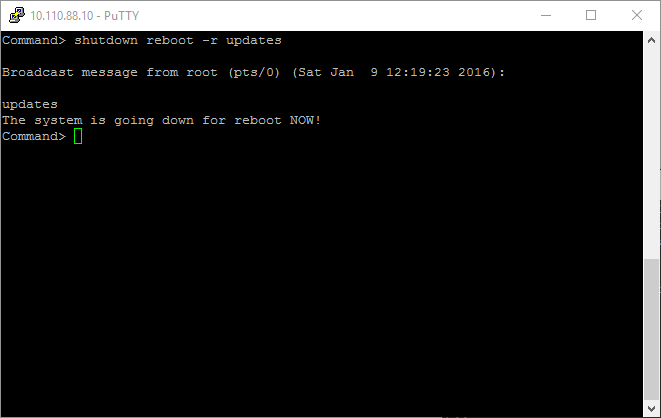
reboot -r updates exit
Update ESXi – Fast Method
This is the fastest way, but requires a decent internet connection.
Shut down all your running VM’s and enter Maintenance Mode.
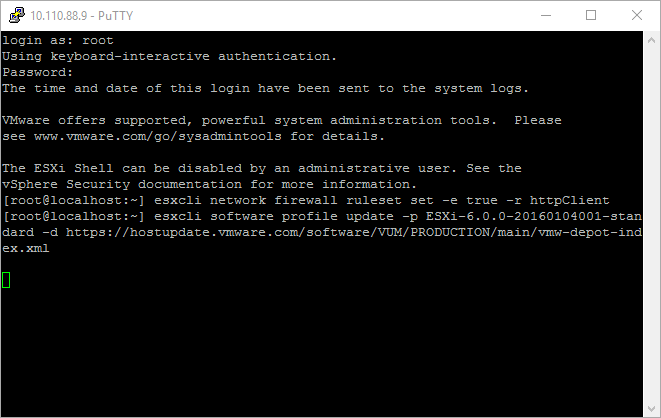
Use Putty to connect to your ESXi host and run the following command:
esxcli network firewall ruleset set -e true -r httpClient esxcli software sources profile list -d https://hostupdate.vmware.com/software/VUM/PRODUCTION/main/vmw-depot-index.xml esxcli software profile update -p ESXi-6.0.0-20160104001-standard -d https://hostupdate.vmware.com/software/VUM/PRODUCTION/main/vmw-depot-index.xml
reboot exit
ESXi: Unable to connect to MKS: The operation is not allowed in the current status.
Unable to shut down, migrate or doing pretty much any operation to a VM with error message including «operation is not allowed in the current state»?
Solution might be enabling ssh on the esxi host, login and try:
Run the esxtop utility using this command:esxtop
Press c to switch to the CPU resource utilization screen.
Press Shift+v to limit the view to virtual machines. This may make it easier to find the Leader World ID in step 6.
Press f to display the list of fields.
Press C (uppercase) to add the column for the Leader World ID.
Identify the target virtual machine by its Name and Leader World ID (LWID).
Press k.
t the World to kill prompt, type in the Leader World ID from step 6 and press Enter.
Wait 30 seconds and validate that the process is not longer listed.
In vSphere client, check if the machine detects it is shut down, if it doesn’t happen right click and choose shut down, hopefully this will work now.
Ref: http://kb.vmware.com/selfservice/microsites/search.do?language=en_US&cmd=displayKC&externalId=1014165