Author Archives: Sean

Use CNTML to pass through NTML proxy

Lots of company require end users to use a proxy to access internet. Some of them are using NTML proxy such as ISA. But some software such as Xshell, putty are not supporting NTML proxy.
So we can use CNTML to pass through NTML proxy.

Official website:http://sourceforge.net/projects/cntlm/
You can also refer to wiki:http://sourceforge.net/apps/mediawiki/cntlm/index.php?title=Main_Page

1. Download CNTML. I suggest to download the zip version due to users may not have admin rights.
2. Unzip it.
3. Modify configuration file cntlm.ini,Please note that the password is in plain text and it’s a security risk:

Username: Your domain username
Domain: Your domain name
Password : Your domain password. (It seems that if you have # in your password, you may get some problem)
Proxy : You NTML proxy address, such as 10.0.0.1:8080
Listen cntlm: By default it’s 3128

4. Create a shortcut for cntlm.exe, and then right click the shortcut, choose property. And add ” -c cntlm.ini” at the end of target. Otherwise CNTML will try to laod the configuration files in C:\Program Files\cntlm中的cntlm.ini, and you’ll get an error.
5.Double click the shortcut to start CNTML. And then open task manager, you can find that cntml is running.
6. In Xshell, create a new proxy which is 127.0.0.1:3128
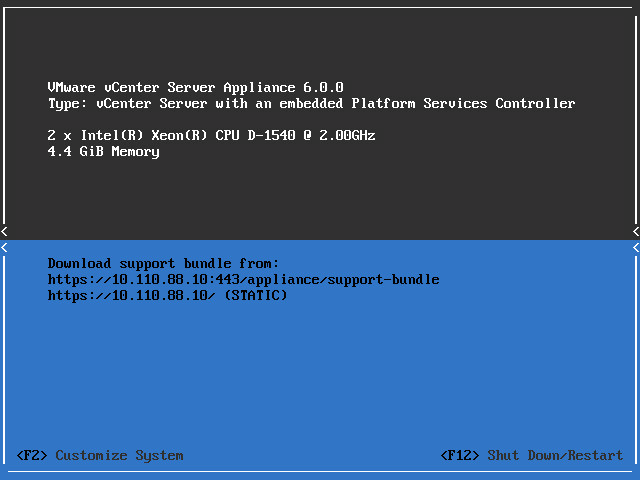
Upgrade vCenter Server Appliance (VCSA) and ESXi

Upgrade vCenter

Vcenter

Best practices is always to upgrade vCenter before your ESXi hosts. Download the ISO and upload to your Datastore.

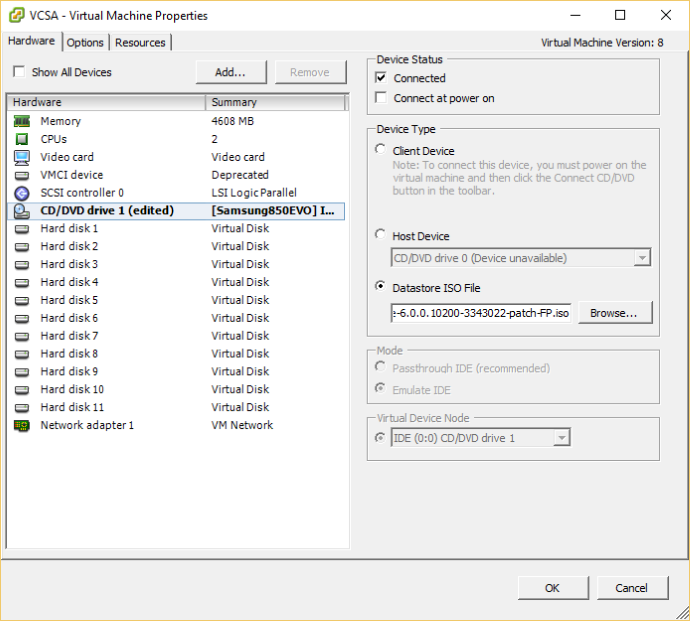
Attach the ISO to the vCenter VM.

Mount ISO

Mount ISO

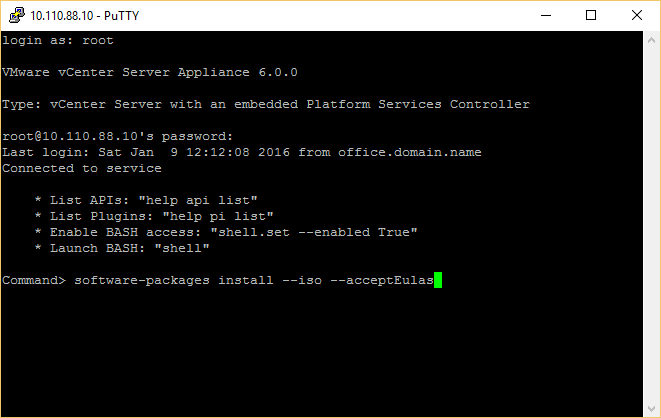
Use Putty to connect to your VCSA and run the following command:

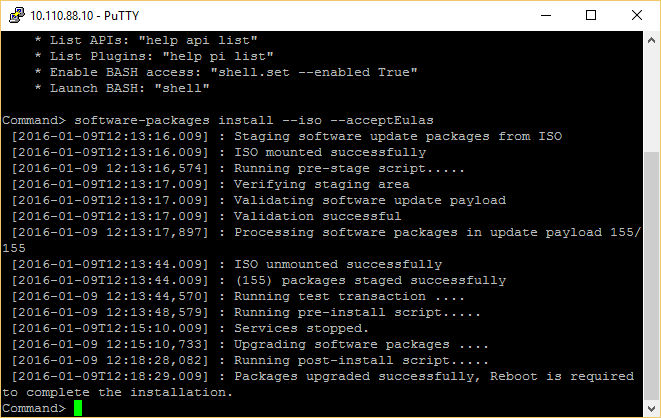
software-packages install --iso --acceptEulas

step 3

4

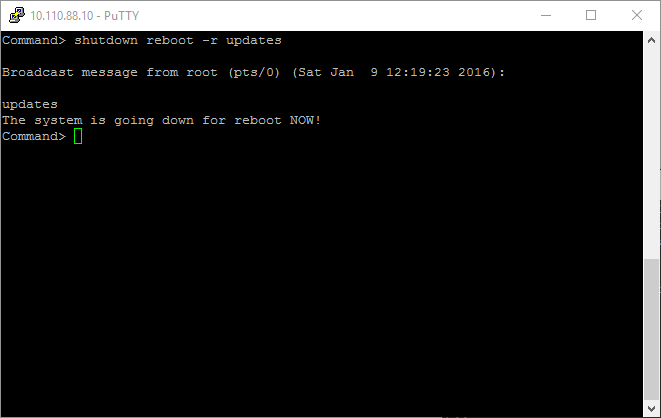
reboot -r updates
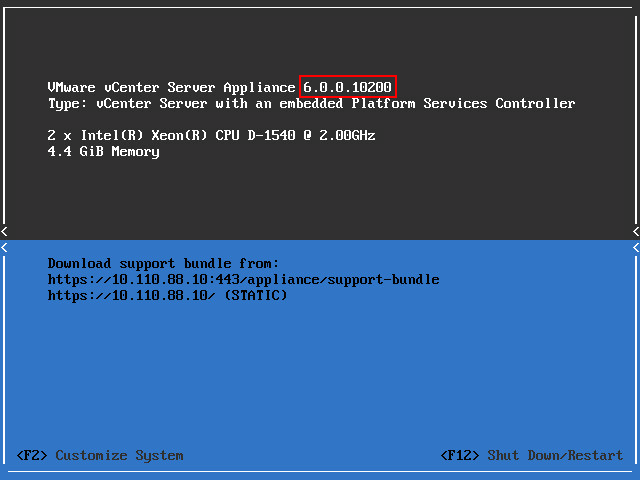
exit

5
6

Update ESXi – Fast Method

This is the fastest way, but requires a decent internet connection.

Shut down all your running VM’s and enter Maintenance Mode.

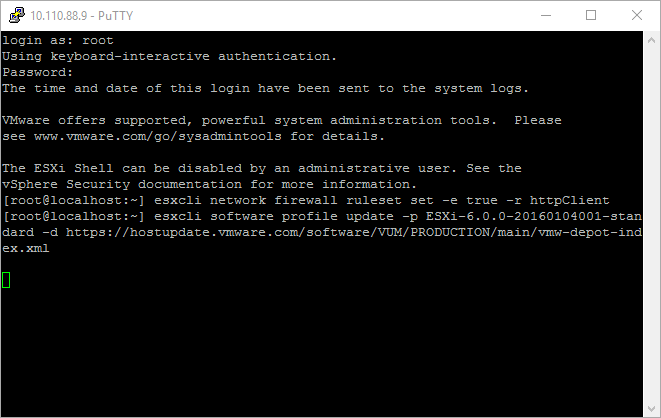
Use Putty to connect to your ESXi host and run the following command:

esxcli network firewall ruleset set -e true -r httpClient
esxcli software sources profile list -d https://hostupdate.vmware.com/software/VUM/PRODUCTION/main/vmw-depot-index.xml
esxcli software profile update -p ESXi-6.0.0-20160104001-standard -d https://hostupdate.vmware.com/software/VUM/PRODUCTION/main/vmw-depot-index.xml

updaet esxi

reboot
exit

Install FreeBSD on Linode VPS

I’m a FreeBSD fan, I prefer to use FreeBSD as the web server if possible.
In the pass Linode doesn’t support FreeBSD, people who want to use FreeBSD have to choose Digital Ocean or other service provider.
And in earlier this year, Linode has migrated all VPS from Xen to KVM, and it made installing FreeBSD on Linode VPS possible. But FreeBSD is not official supported by Linode. You can’t deploy FreeBSD via Linode control panel. So I wrote this article to share my experience about how to install FreeBSD on Linode.

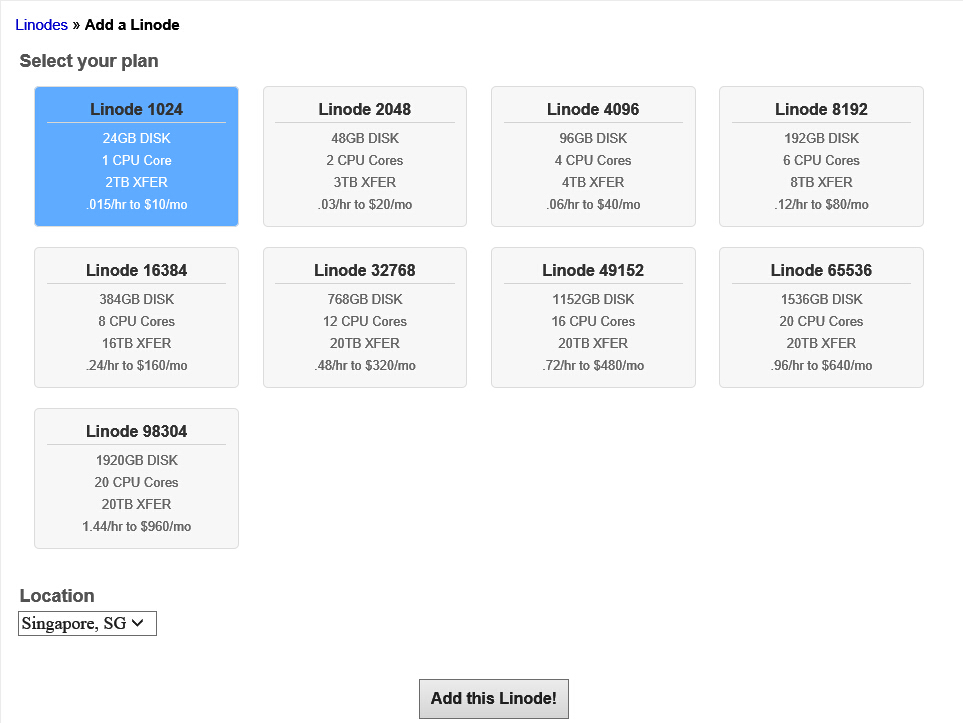
1. Add a new linode VPS.

1

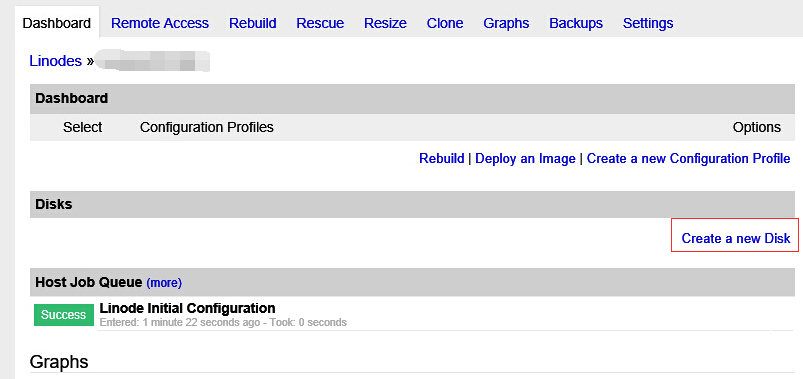
2. Go to the dashboard, and create a new vDisk.

2

Continue reading

Fix”Video Schedule Internal Error”blue screen problem

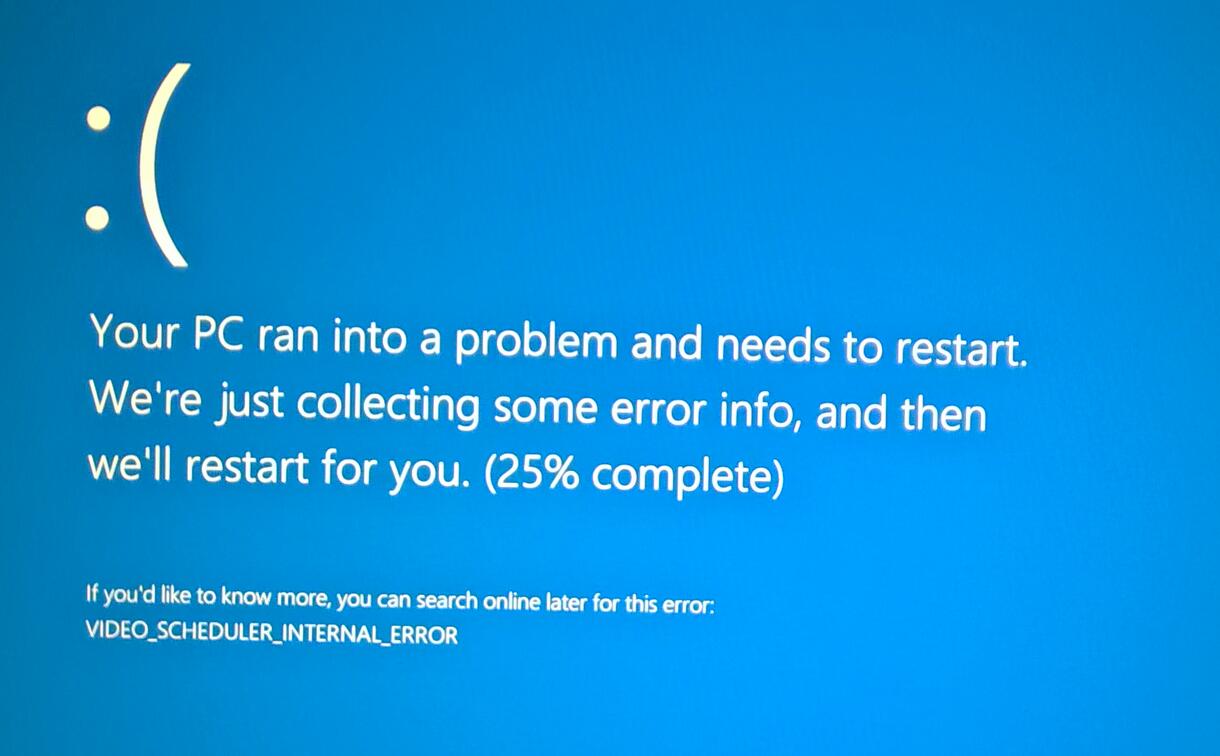
I just set up a new Z170/6700K machine which is running windows 10. But I always got the blue screen with error message Video_Schedule_Internal_Error.

bluescreen

After investigation, I found that this problem was caused by the latest Intel Video card driver win64_15407.4279.
The workaround is to change the shared memory settings for the Intel Video card. You need to assign 128M memory for per 8G memory. It means:

If you have 8G memory, assign 128M memory for the Video card;
If you have 16G memory, assign 256M memory for the Video card;
If you have 32G memory, assign 512M memory for the Video card;

Exclude certain Office programs when deploying Office 365 / Office 2016

1, Download Office 2016 Deployment Tool
https://www.microsoft.com/en-us/download/details.aspx?id=49117

2, create a configuration.xml similar to below

<Configuration>

      <Add SourcePath="F:" OfficeClientEdition="64" >
        <Product ID="ProplusRetail">
          <Language ID="en-us" />
          <ExcludeApp ID="Access" />
          <ExcludeApp ID="Groove" />
          <ExcludeApp ID="InfoPath" />
          <ExcludeApp ID="Lync" />
          <ExcludeApp ID="Outlook" />
          <ExcludeApp ID="Project" />
          <ExcludeApp ID="Publisher" />
          <ExcludeApp ID="SharePointDesigner" />
           <ExcludeApp ID="Visio" />
        </Product>
      </Add>
</Configuration>

3. Put the configure file in the same folder with deployment tool, then run below command as administrator:

setup.exe /configure configuration.xml

Done

Please note you need to modify Product ID to match the version you purchased,
For office 2016, use Product ID=”ProplusRetail”;
For office 365, use Product ID=”O365ProPlusRetail”

Remove / Uninstall OneDrive in Windows 10

1. Run CMD as administrator, and then kill OneDrive process

    taskkill /f /im OneDrive.exe

2. Uninstall OneDrive for 32bit Windows 10

    %SystemRoot%System32OneDriveSetup.exe /uninstall

3. Uninstall OneDrive for 64bit Windows 10

    %SystemRoot%SysWOW64OneDriveSetup.exe /uninstall

4. Delete OneDrive folder

    rd "%UserProfile%OneDrive" /Q /S
    rd "%LocalAppData%MicrosoftOneDrive" /Q /S
    rd "%ProgramData%Microsoft OneDrive" /Q /S
    rd "C:OneDriveTemp" /Q /S

5. Delete registry keys for OneDrive.

    REG Delete "HKEY_CLASSES_ROOTCLSID{018D5C66-4533-4307-9B53-224DE2ED1FE6}" /f
    REG Delete "HKEY_CLASSES_ROOTWow6432NodeCLSID{018D5C66-4533-4307-9B53-224DE2ED1FE6}" /f